



















Product Overview, Onboarding Process & Visual Walkthrough
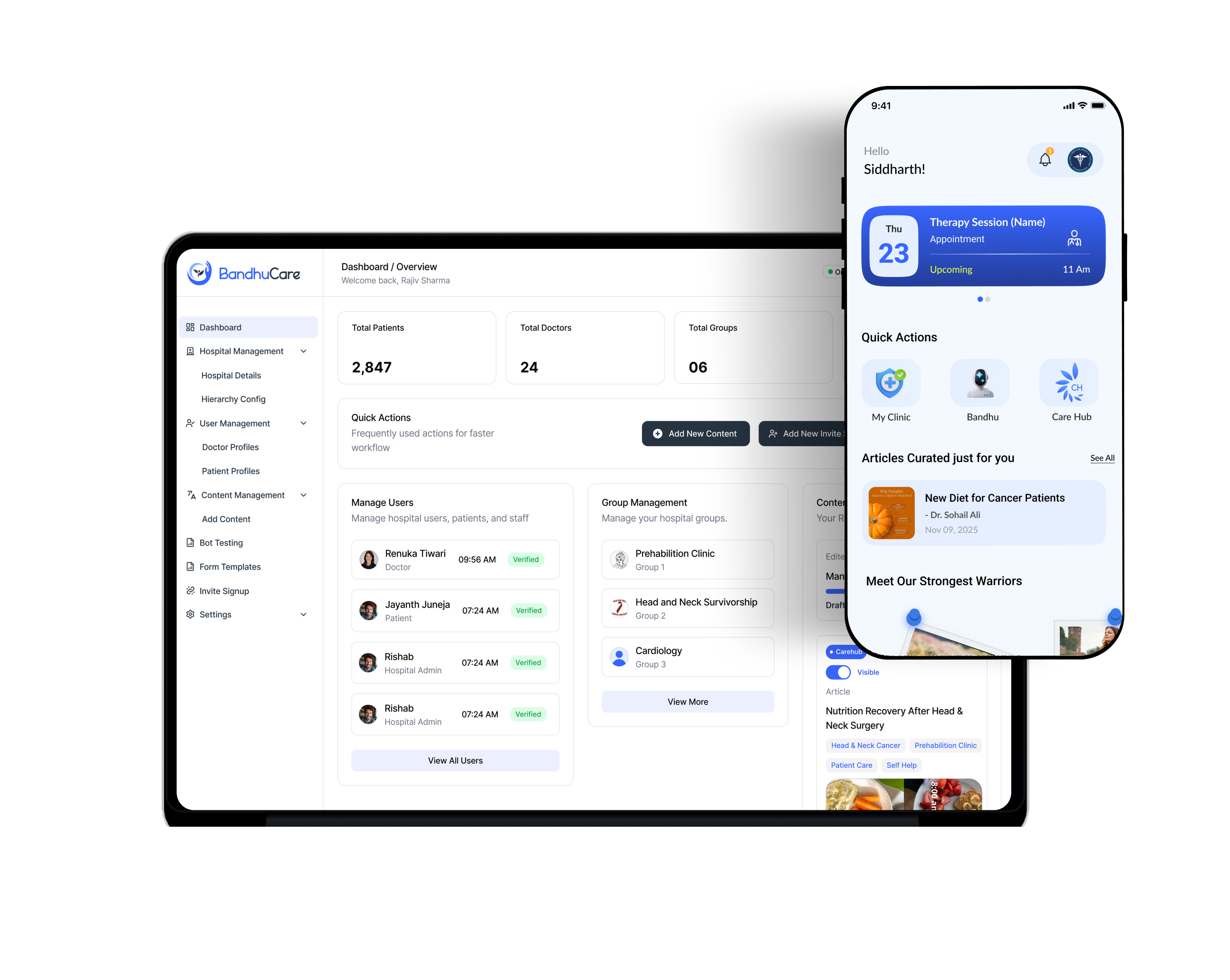
This document provides an overview of BandhuCare, its patient mobile application, the web-based Admin and Health Worker platform, and the onboarding and key feature walkthroughs.
1. What is BandhuCare?
BandhuCare is a mobile application designed to bridge the gap between patients and doctors. Its main goal is to help patients stay more engaged with their healthcare team while giving doctors better insight into the patient's day-to-day health, activities, and lifestyle.
By capturing relevant information between doctor appointments, BandhuCare helps doctors understand their patients better and make more informed decisions during follow-up appointments. This can support more efficient and informed patient care.
2. What Does BandhuCare Do?
BandhuCare is available in two formats:
- Mobile Application - patient-focused
- Web Application - mainly used by Admins and Health Workers
3. Mobile Application - Patient Version
The BandhuCare mobile application is designed specifically for patients and supports 10 regional languages, making it easier for patients to use the application in their preferred language.
3.1 Patient Account Creation
The patient first selects a preferred language and creates an account using a mobile number, email address, or Google account. The patient then enters the required basic information and joins a group created by the Health Worker.
Once the patient joins the relevant group, the patient is onboarded and can access the available features of the application.
3.2 Key Features
- Bandhu - Health Chatbot
- My Clinic
- Reminders
- Questionnaires
- Journal
- Health Articles
- Health Review
3.3 Bandhu - Health Chatbot
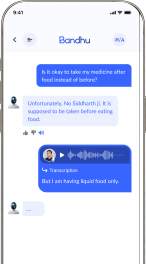
Patients can use Bandhu to ask general questions related to their health and daily routine. The chatbot provides responses and suggestions based on the information and content provided by the healthcare team.
The conversation between the patient and the chatbot can be summarized. Doctors can review these summaries to understand what the patient discussed or experienced between appointments.
3.4 Patient Journal
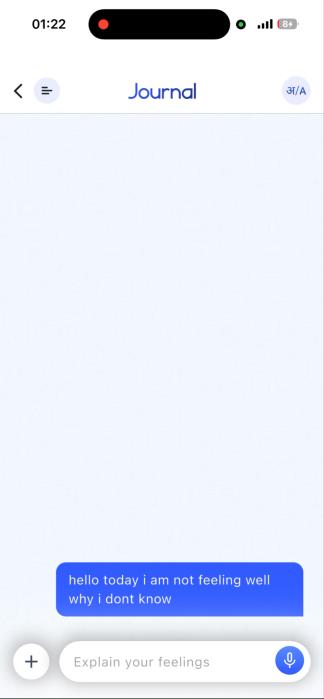
Patients can use the Journal feature to record day-to-day health concerns. For example, a patient may record that they have been experiencing a headache for the past two days.
A summary of the patient's journal entries can be generated to help the doctor understand what happened between appointments.
3.5 Time-Based Questionnaires
BandhuCare includes time-based questionnaires created by the healthcare team. At scheduled times, patients receive questions and follow-up questions through the application. Patients answer the questions, and a summary of their responses is generated. Doctors can review this information to understand how the patient has been doing between follow-up appointments.
3.6 Health Articles
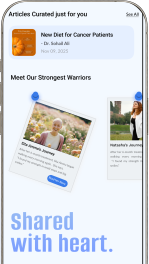
Health Workers can upload health-related articles and other useful content through the web application. Patients can access these articles through the mobile application to learn more about their health and improve their daily health routines.
4. Web Application - Admin and Health Worker Version
The web-based version of BandhuCare functions as an administration and management panel for Admins and Health Workers. It allows them to manage patients, groups, content, questionnaires, consent forms, and other activities.
4.1 Hospital Setup
Before patients can be onboarded, the hospital or organization needs to be created in the system. The Super Admin is responsible for onboarding the hospital and creating credentials for the Admin and Health Workers.
4.2 Group Management
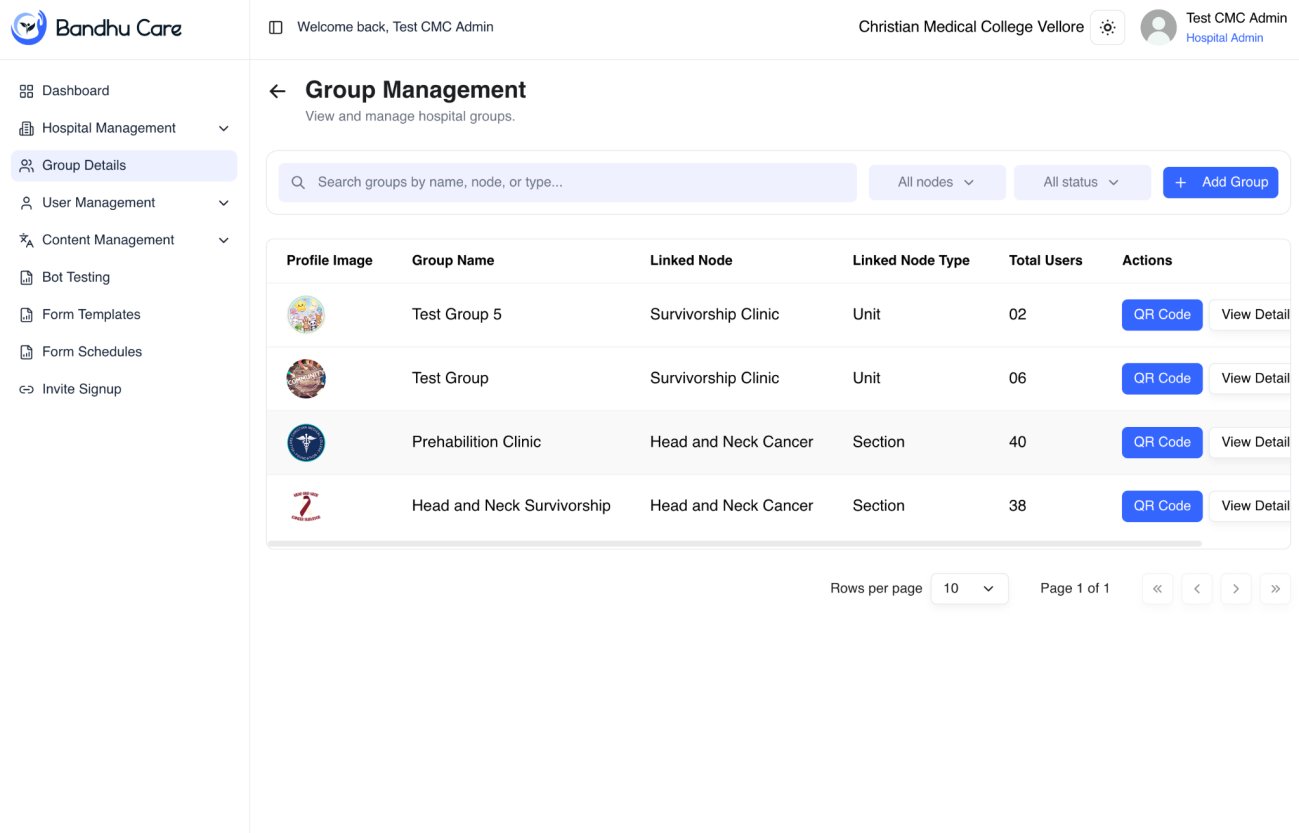
Once the hospital is onboarded, the Admin can create groups based on the patient's treatment or healthcare program. For example, a hospital may create a group for patients undergoing Head and Neck Cancer treatment. Patients who belong to the same treatment program can then be associated with the relevant group.
4.3 Consent Forms
The Admin can create and manage consent forms according to how patient data is used and stored on the server.
4.4 Content Management and Bot Training
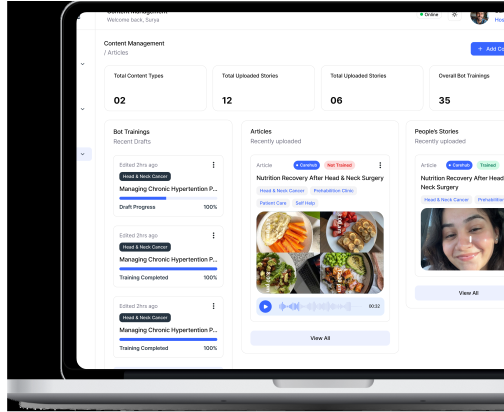
Health Workers can upload documents, images, text, and other content through the web application. This content is used to train the bot. Before deployment, the Health Worker can test the bot in the Bot Testing section to check its responses against the uploaded content.
4.5 Other Management Functions
The Admin and Health Worker platform also supports application onboarding images and other management activities.
5. Patient Onboarding Process
Patients cannot directly use the BandhuCare mobile application without being associated with an organization. For example, consider a patient named John who is receiving cancer treatment under the Radiation Oncology Department and is attending follow-up appointments for Health Review.
- The Health Worker creates a group for patients undergoing Head and Neck Cancer treatment through the Admin panel and generates a QR code for the group.
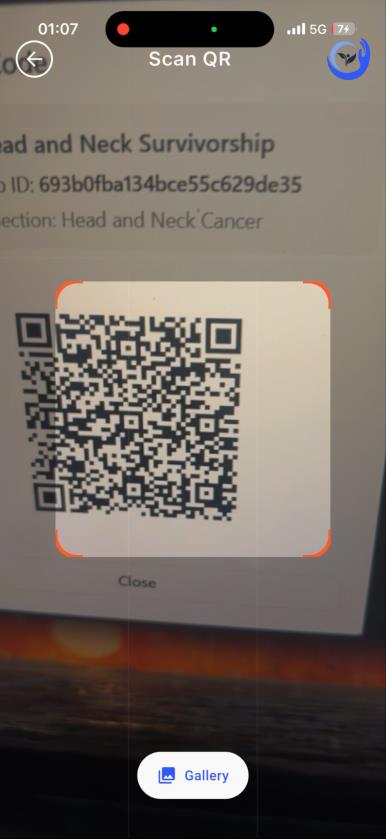
- During the patient's next follow-up appointment, the patient scans the QR code provided by the Health Worker and joins the group.
- Once the patient joins the group, the patient is successfully onboarded. The Admin can view and manage the patients associated with the group.
- From this point onward, the patient can access the available features of the BandhuCare mobile application.
6. Super Admin and Admin Onboarding
The Super Admin credentials are generated by the developers. The primary responsibility of the Super Admin is to onboard the hospital and create credentials for the Admin and Health Workers.
- The developers create the credentials for the Super Admin.
- The Super Admin onboards the hospital and adds the Admin and Health Worker accounts.
- The Admin manages users, creates and manages groups, and performs other administrative tasks.
- Health Workers add content through the web application, use the content to train the bot, test the bot, and generate summaries as required.
7. Patient Application - Visual Walkthrough
This section provides a step-by-step walkthrough of the patient mobile application and its main features.
1. Installing the Application
The patient can install BandhuCare from the Google Play Store for Android devices or the App Store for iOS devices.
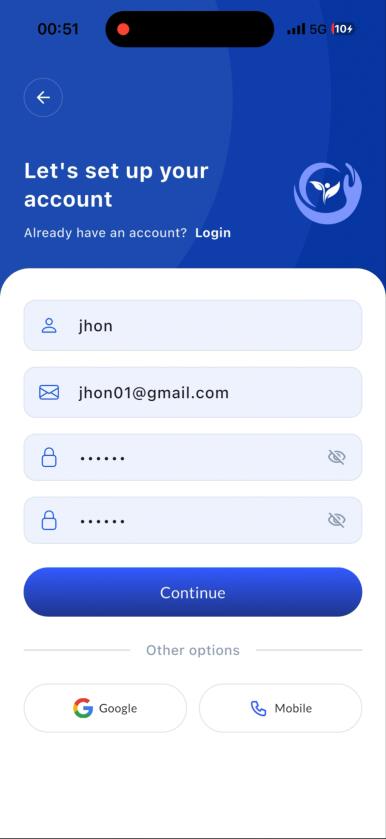
2. Creating an Account
After installing the application, the patient can create an account using an email address, mobile number, or Google account.
3. Entering Basic Details
The patient enters basic information such as first name, last name, mobile number, and other required details.
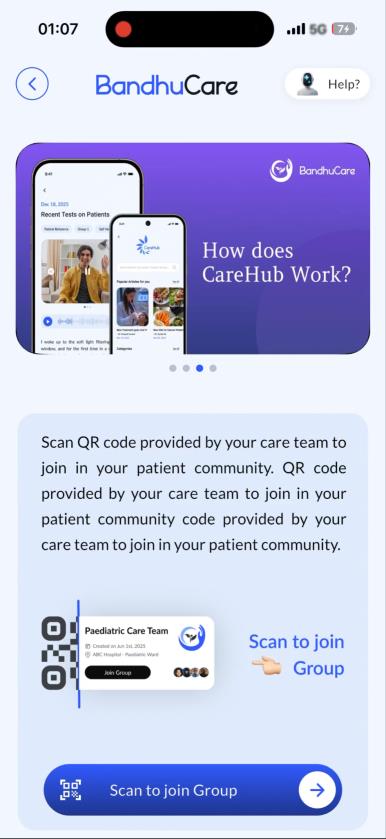
4. Joining a Group
The patient scans the QR code provided by the Health Worker or Doctor to join a specific group.
5. Viewing Group Details
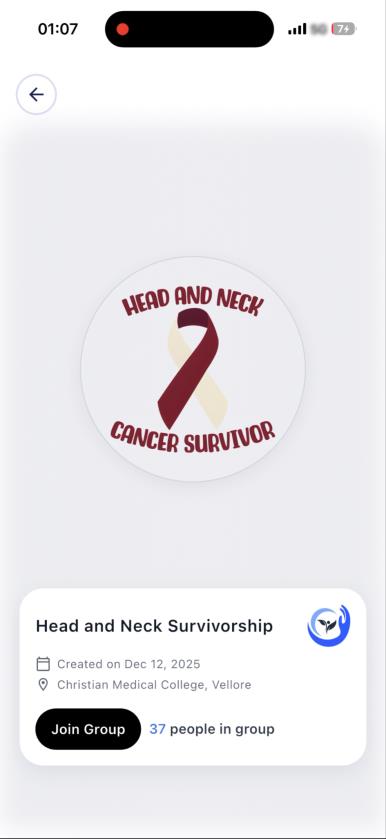
After scanning the QR code, the patient can view basic group information, such as the group name and number of patients in the group, and then join the group.
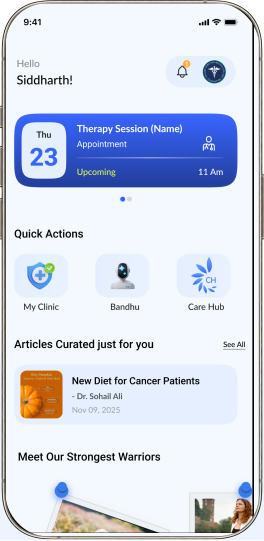
6. Home Screen
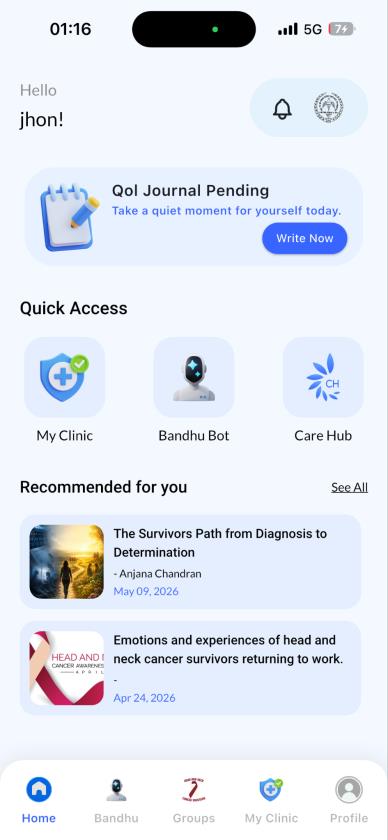
After joining the group, the patient is redirected to the Home Screen. The patient's name is displayed at the top, and a notification bell icon appears in the top-right corner. Selecting it displays the patient's notifications.
7. Dynamic Menu
Below the header, a dynamic sliding menu provides quick access to Questionnaires, Reminders, and Journal.
8. Questionnaires, Reminders, and Journal
The Questionnaire section shows progress - for example, 0/10 indicates that none of the 10 questions have been answered. The Reminder section displays reminders such as medication or doctor visits. The Journal section allows the patient to record health-related information, experiences, or daily well-being.
9. Quick Menu
The Quick Menu provides three options: My Clinic, Bandhu, and CareHub.
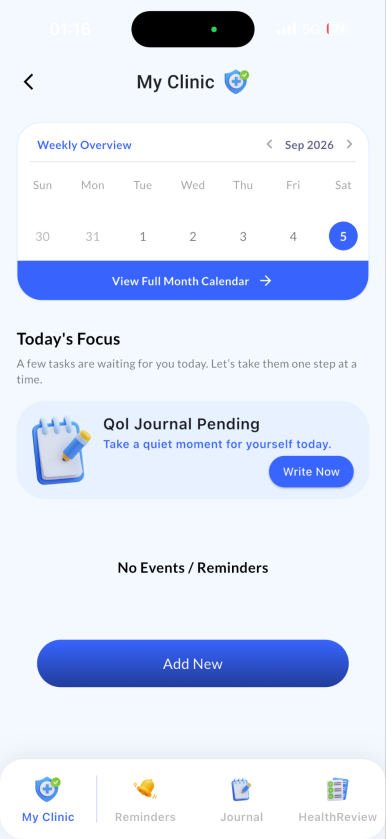
10. My Clinic
Selecting My Clinic opens the My Clinic section. The Health Calendar displays appointments and medication reminders using indicators.
11. Adding a Reminder
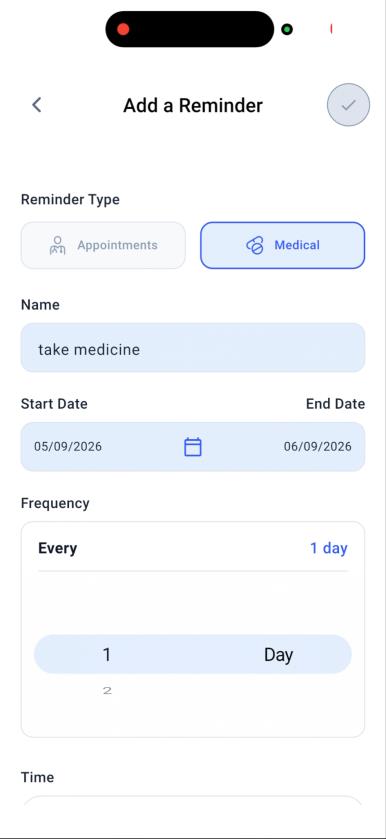
The Add Reminder button allows the patient to select a reminder type, such as Appointment or Medication.
12. Journal Summary and Health Review
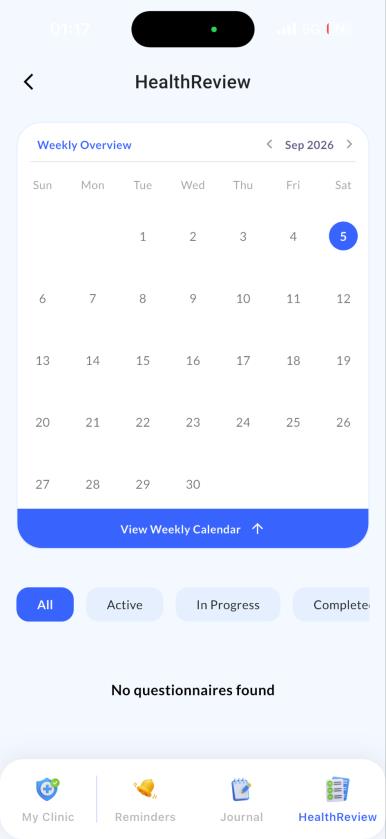
Journal Summary provides a summary of the patient's journal entries. Health Review shows questionnaires and their current status, such as Active, Pending, or Completed.
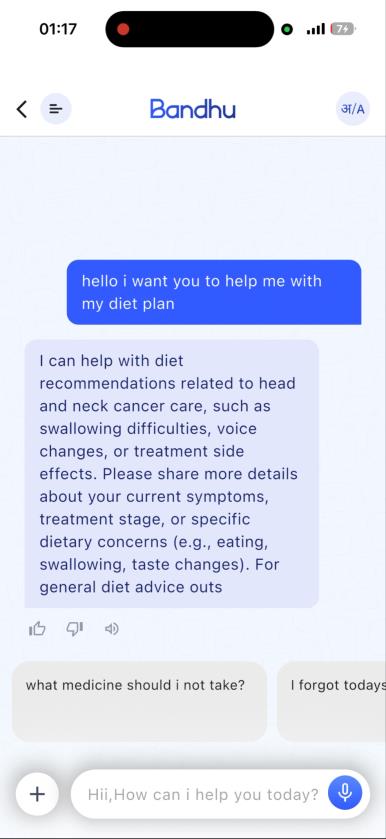
13. Bandhu - Health Chatbot
Bandhu allows patients to ask health-related questions. The chatbot supports multiple languages. Patients can type a query or use the voice option to speak and submit it.
14. CareHub
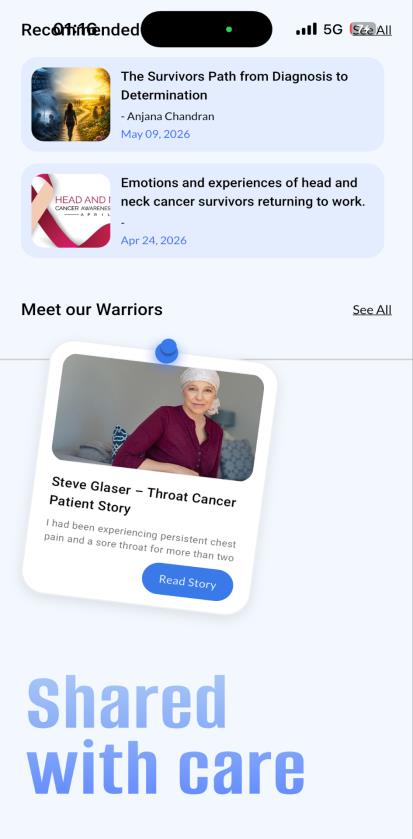
CareHub provides articles and other health-related content based on the group the patient has joined.
15. Health Articles
Patients can access featured health-related articles, including information about health, nutrition, diet plans, and other content uploaded by the Health Worker.
16. Patient Testimonials
The application includes a Patient Testimonials section where patients can view experiences and feedback shared by other patients.
17. Bottom Navigation Bar
The main application features can also be accessed through the Bottom Navigation Bar. The last tab provides access to the Profile section.
8. Profile Section - Visual Walkthrough
8.1 Profile and Settings
The Profile section provides access to various profile and application settings.
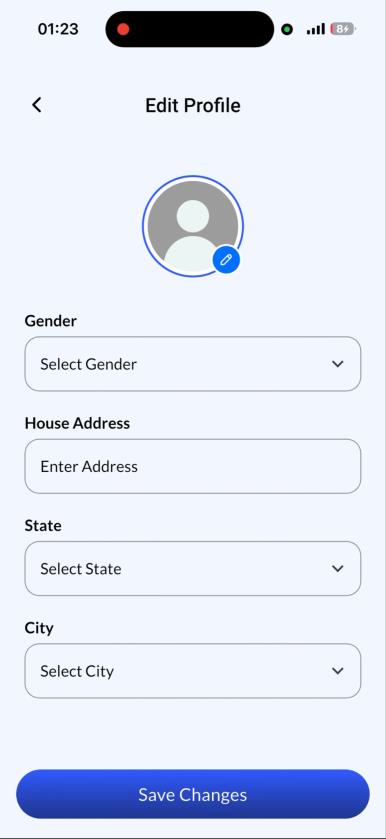
8.2 Editing Profile Information
At the top of the Profile section, the patient's name and email address or mobile number are displayed. A pencil/edit icon opens the Profile Editor, where the patient can edit personal information such as name, gender, and other available profile details.
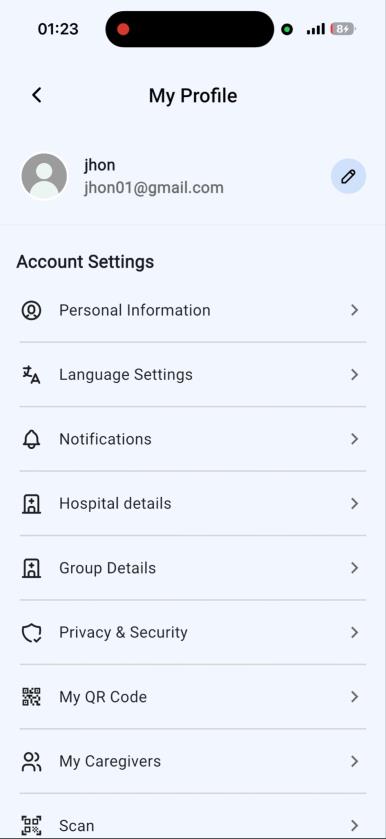
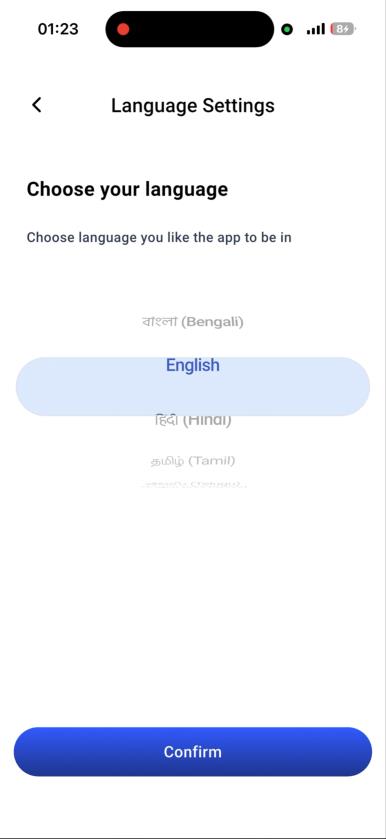
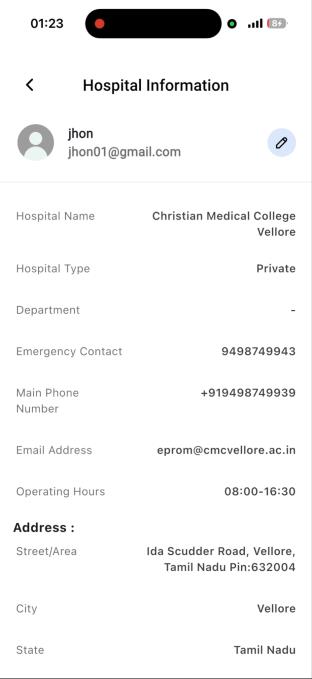
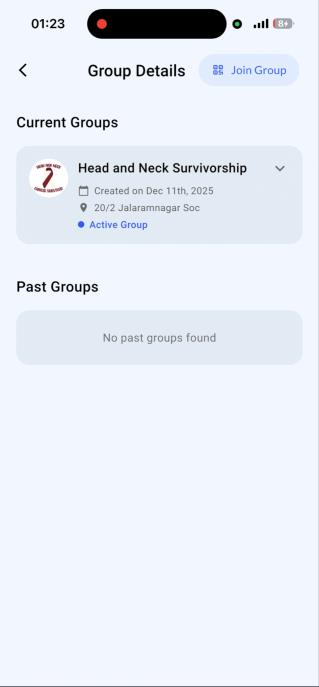
8.3 Personal Information and Other Settings
- Language - Allows the patient to change the application language.
- Notifications - Allows the patient to manage notification settings.
- Hospital Information - Provides basic information about the hospital where the patient is receiving treatment.
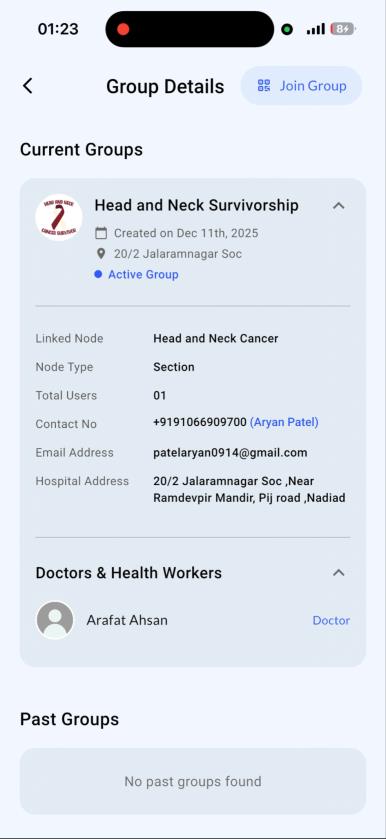
- Group Details - Provides information about the patient's associated group, including the doctor associated with the group.
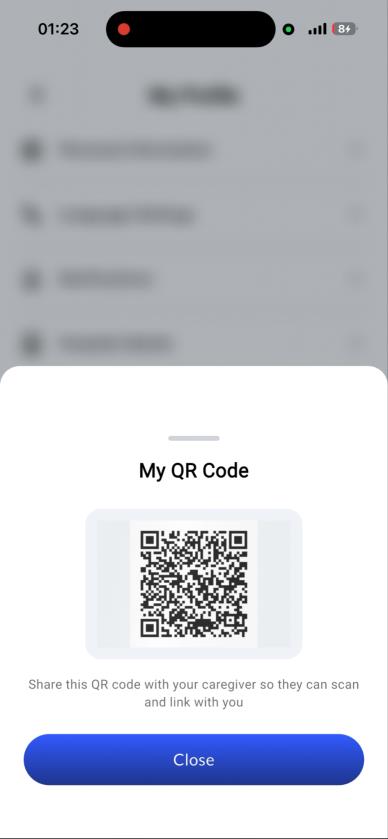
- My QR Code - Provides the patient's personal QR code. Its specific usage is covered separately.
- My Caregivers - Allows the patient to manage and view caregiver information.
8.4 Revoke Consent
The Revoke Consent option allows a patient to withdraw their consent if they no longer wish to provide consent to BandhuCare.
8.5 Logout
The Logout option allows the patient to securely log out of their BandhuCare account.
9. Admin and Super Admin - Visual Walkthrough
9.1 Super Admin
The Super Admin is responsible for onboarding hospitals and creating login credentials for Admins and Health Workers.
1. Super Admin Credentials
The developers create the initial credentials for the Super Admin. Once logged in, the Super Admin can create credentials for the Admin and Health Workers.
2. Super Admin Dashboard
After logging in as a Super Admin, the Dashboard is displayed. A sidebar on the left provides access to the available menu options.
3. Dashboard Overview
The Dashboard provides an overview of important information, including the number of groups, patients, doctors, and other relevant details.
4. Hospital Management
Hospital Management allows the Super Admin to add or edit hospital details, including hospital name, hospital type, phone number, email address, emergency contact number, and location details.
5. Group Management
Group Management allows users to create, edit, and manage groups.
6. Content Management
Content Management is used to upload and manage content. Health Workers can use this section to upload content through the web application.
7. Bot Testing
Bot Testing allows Health Workers to upload content and train the bot based on that content. After training, the bot can be tested to check whether its responses are relevant to the uploaded content.
8. Form Template and Form Schedule
Form Template and Form Schedule are used by Health Workers to manage questionnaires, including questionnaire templates and their schedules.
10. Admin Portal - Visual Walkthrough
1. Login to the Admin Portal
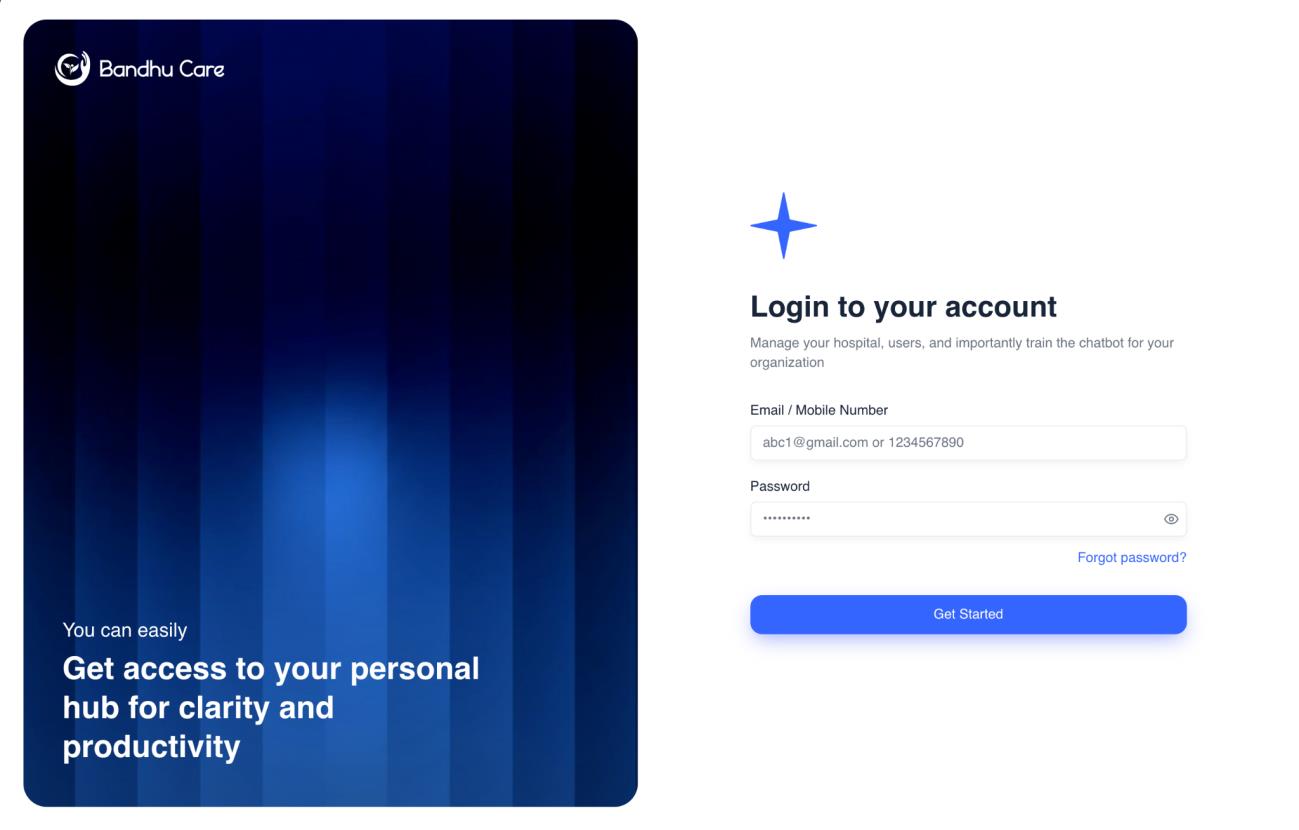
The Admin Portal login screen provides fields for the email or mobile number and password, along with the option to continue to the portal.
2. Admin Portal Dashboard
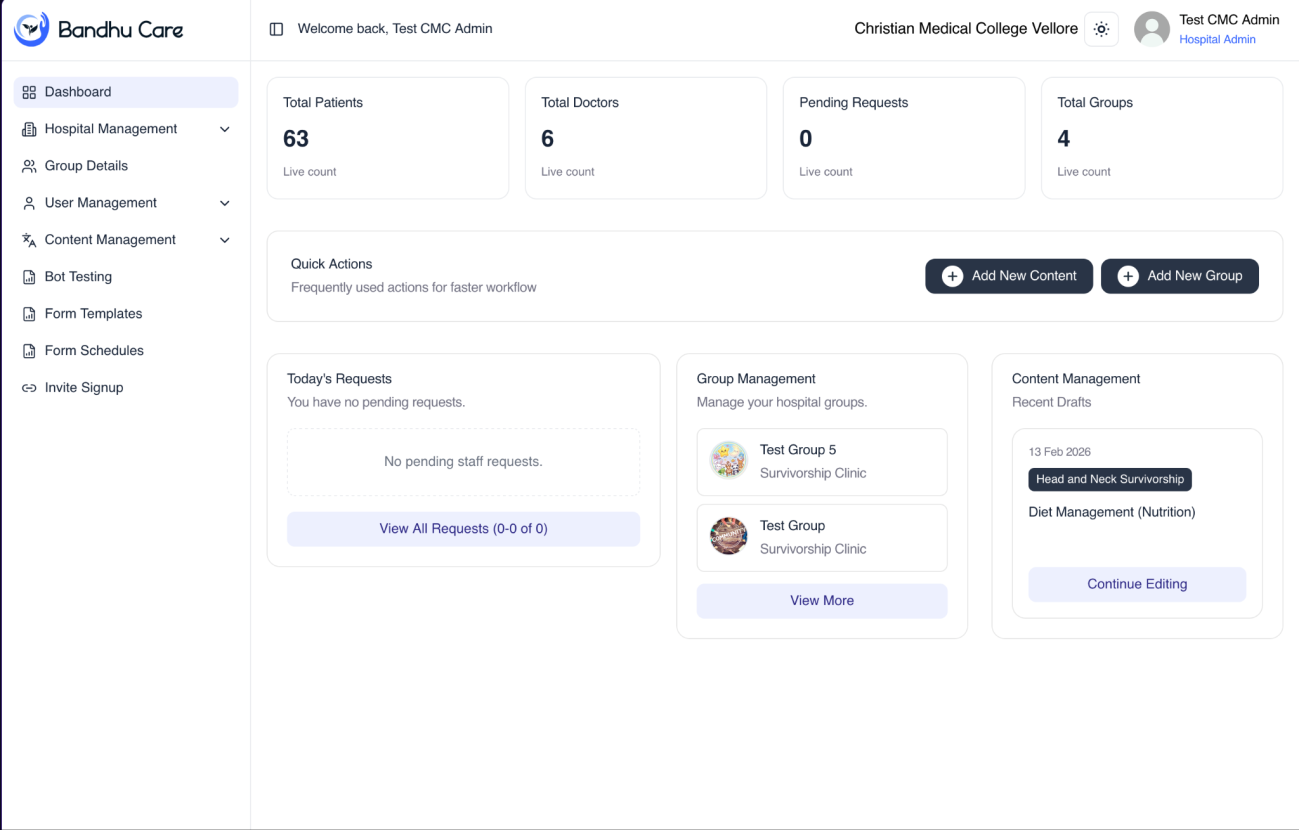
The Admin Portal Dashboard provides an overview of patients, doctors, pending requests, and groups, along with quick access to common management functions.
3. Hospital Management
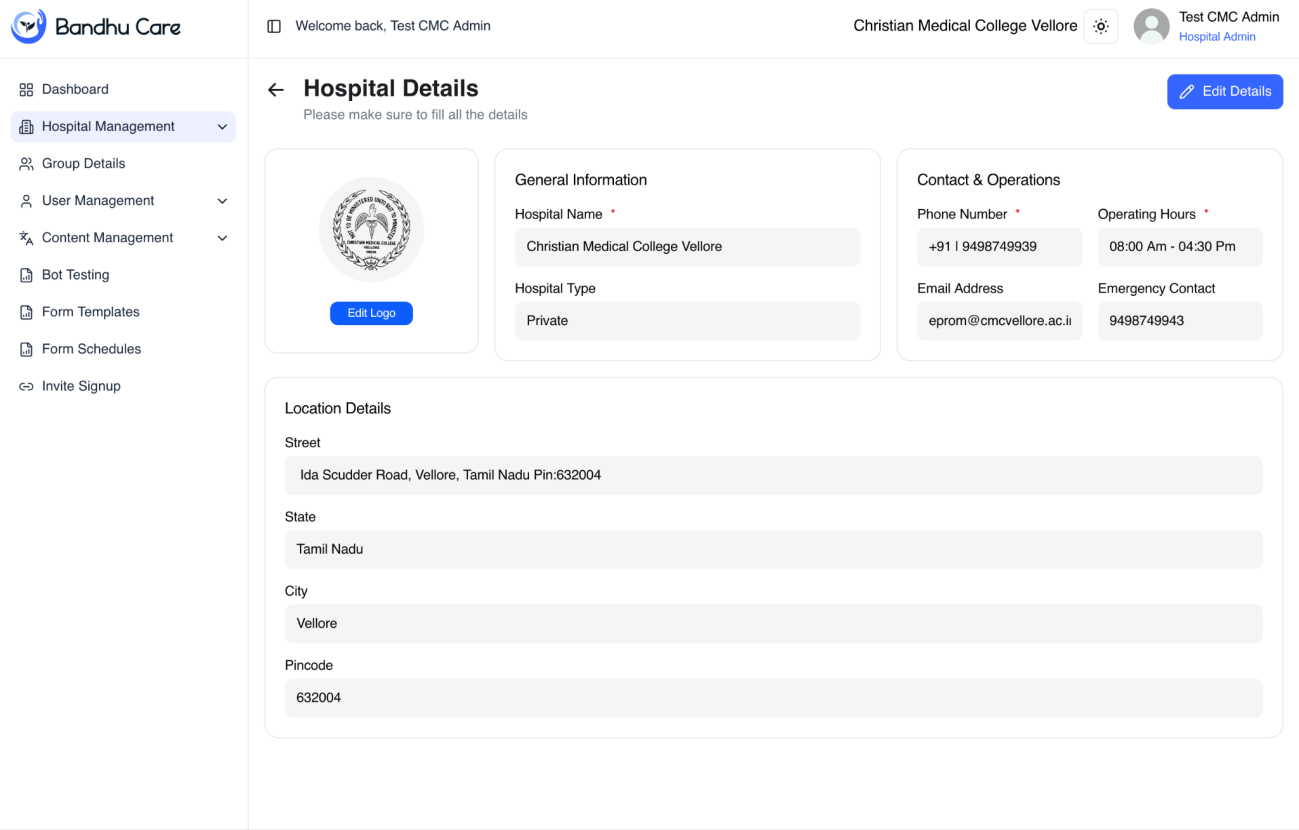
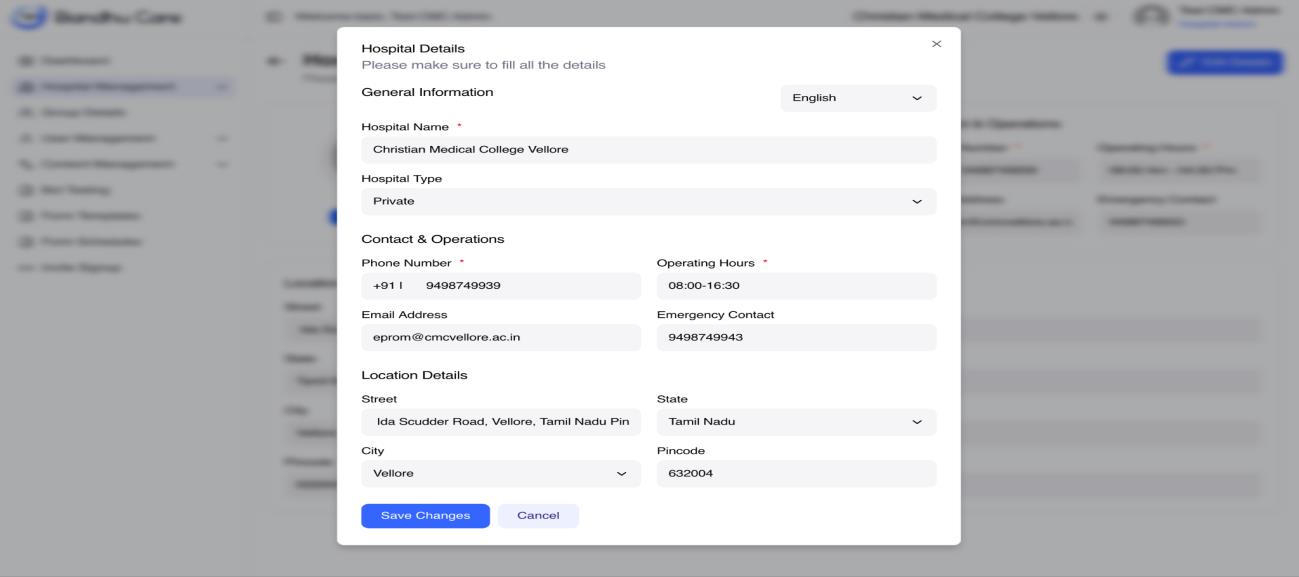
Hospital Management allows the Admin to view and edit hospital details, including general information, contact and operational details, and location details.
4. Group Details
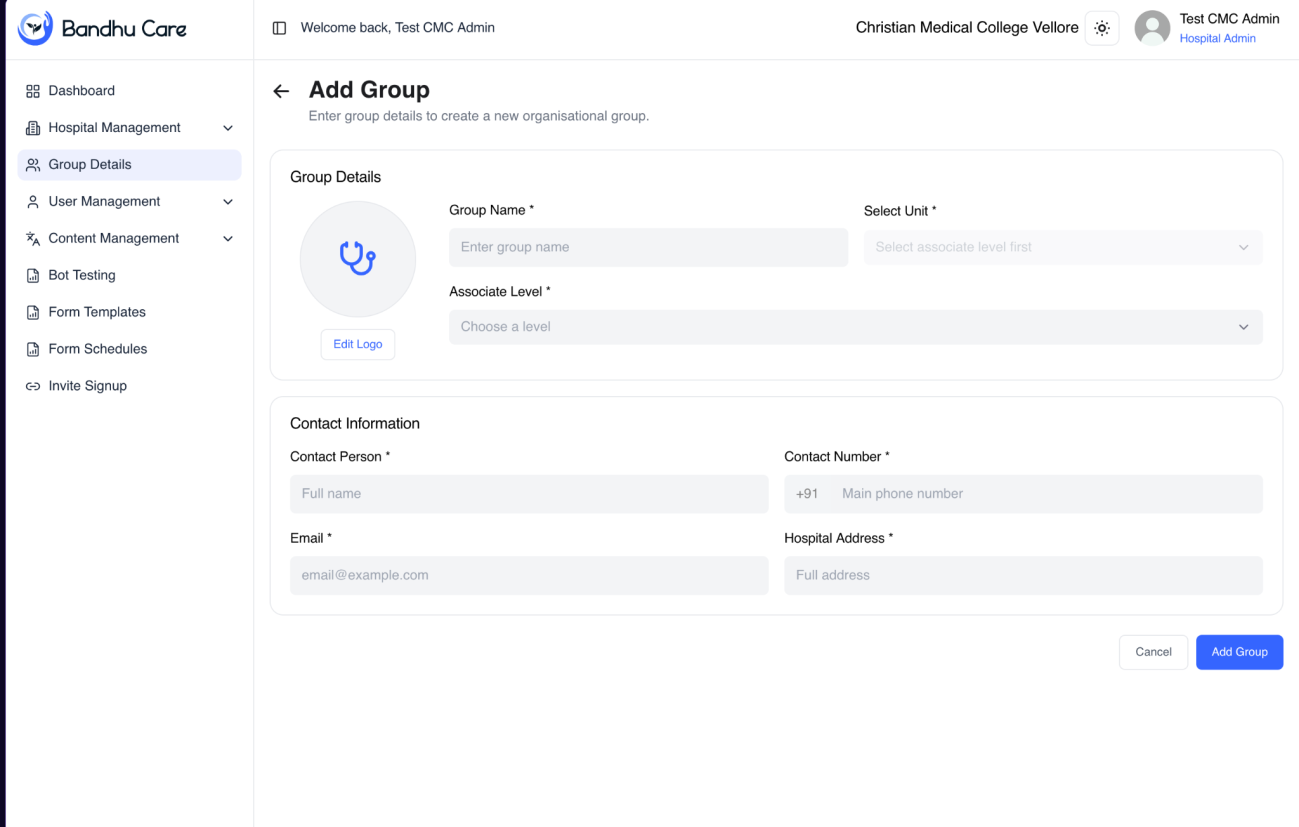
Group Management allows the Admin to view existing groups and create new groups, including group details and contact information.
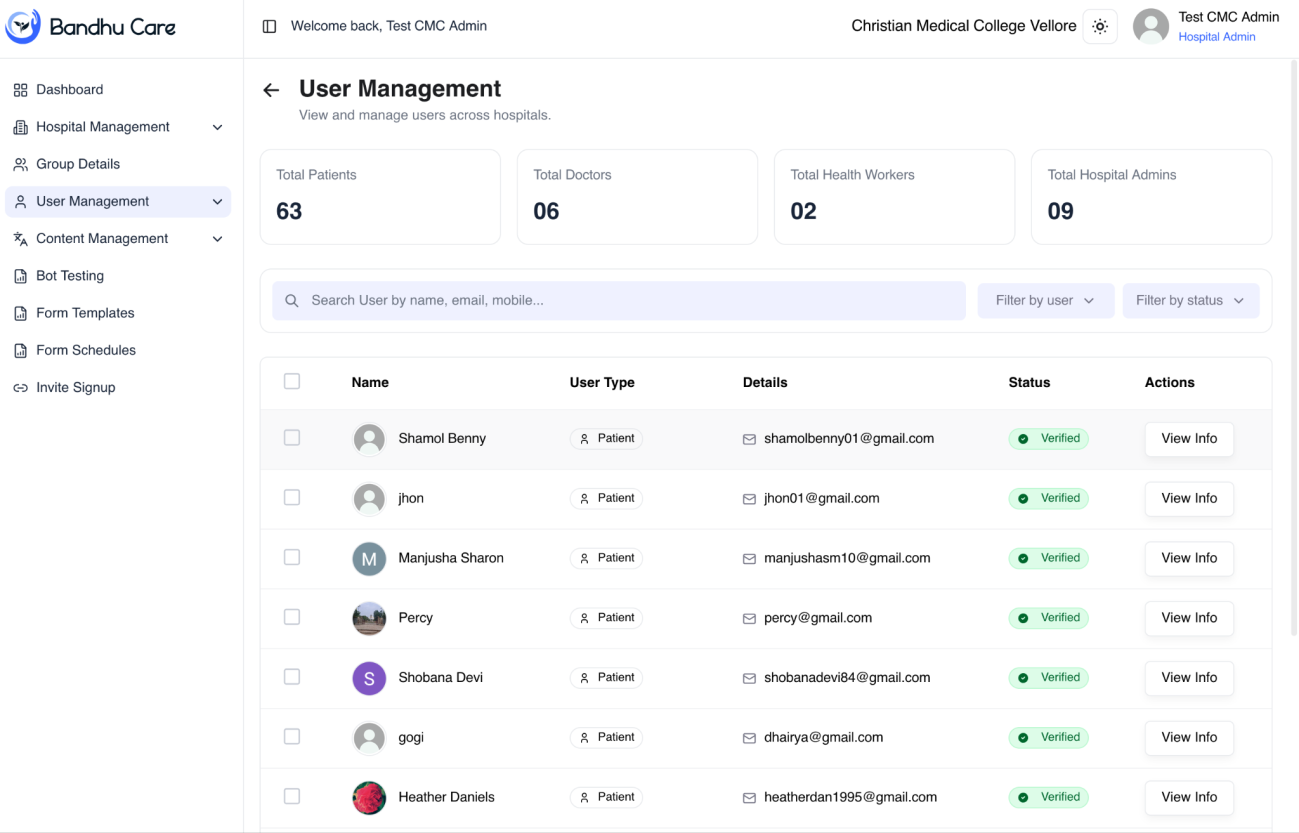
5. User Management
User Management provides an overview of users and allows the Admin to search, filter, and view user information.
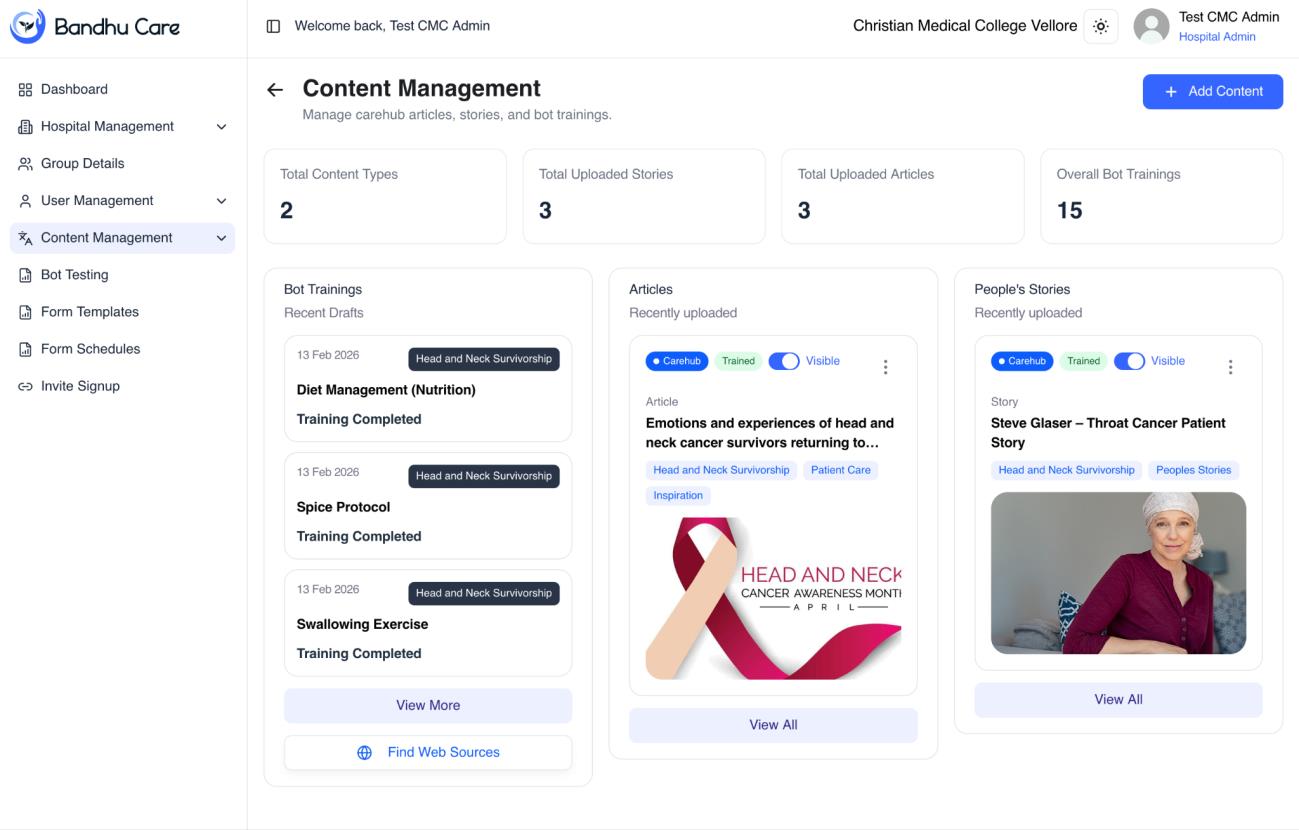
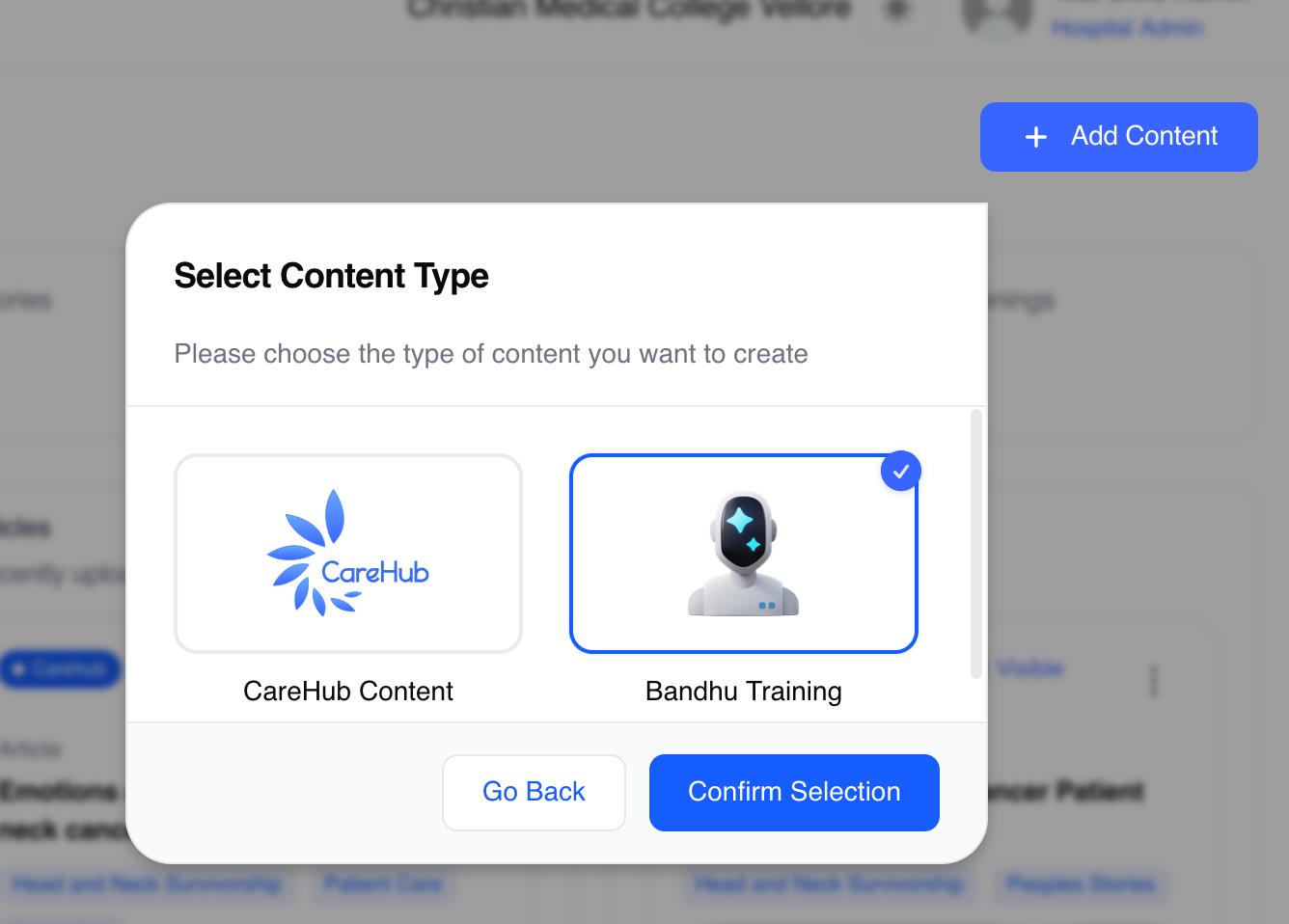
6. Content Management
Content Management allows the Admin and Health Worker to manage content and select the appropriate content type, including CareHub content and Bandhu training content.
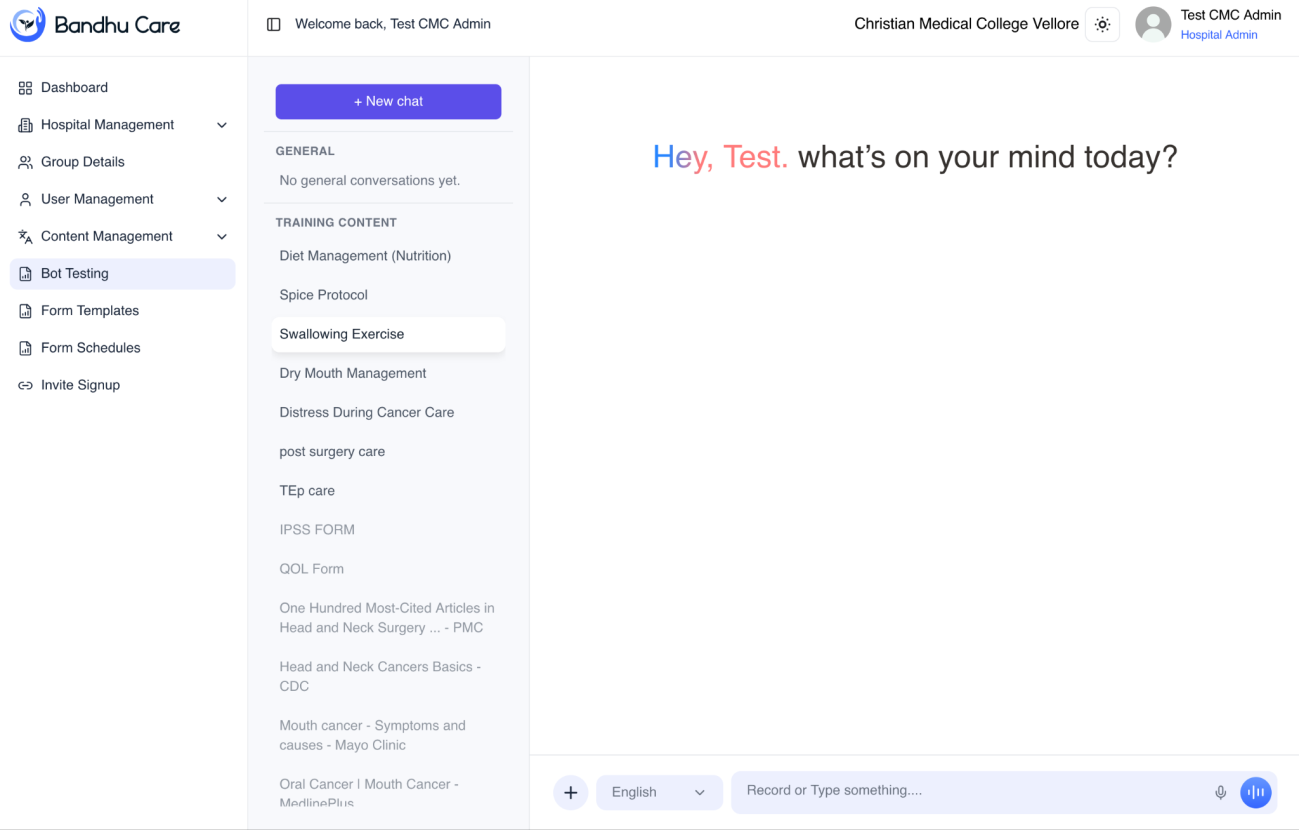
7. Bot Testing
Bot Testing provides an environment for testing the trained chatbot and reviewing its responses.
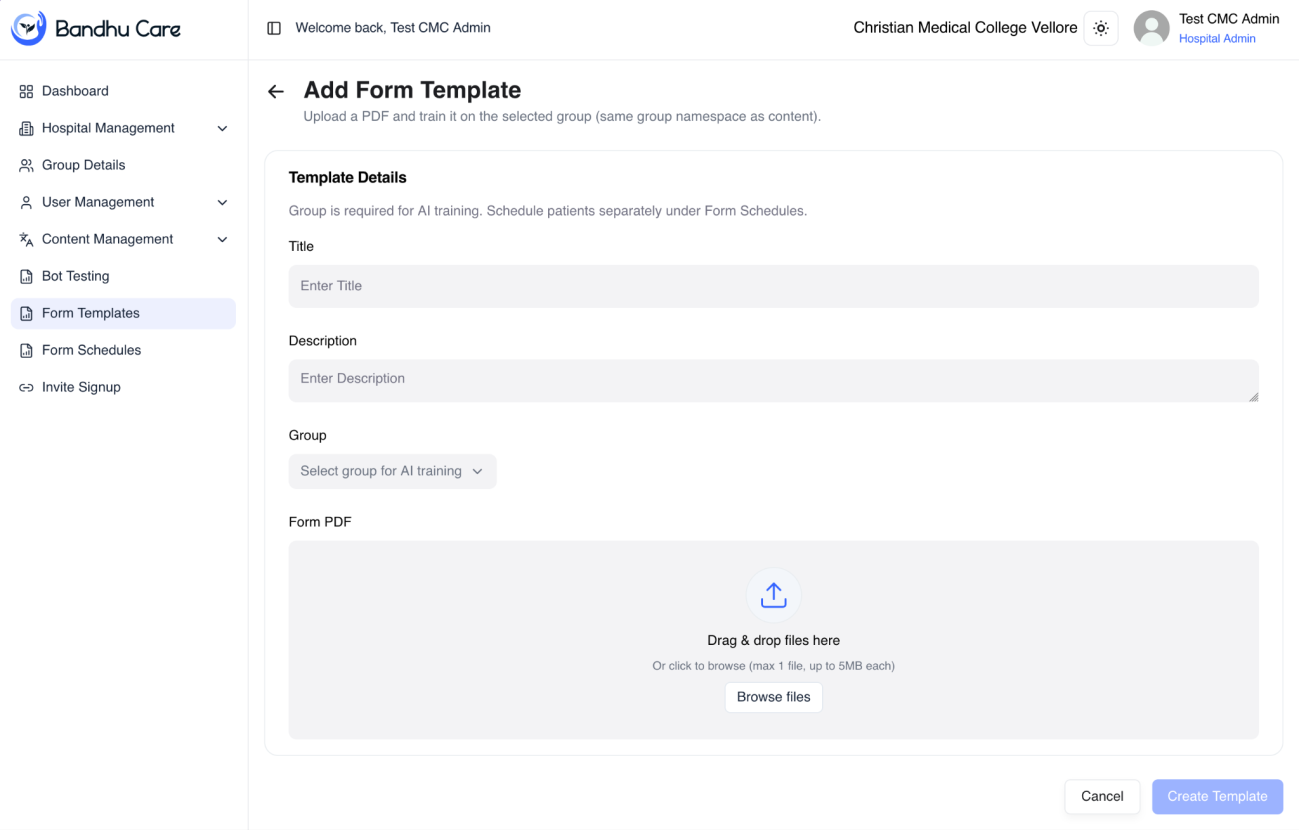
8. Add Form Template
The Add Form Template screen allows the Health Worker or Admin to create a questionnaire template and provide the required form details.
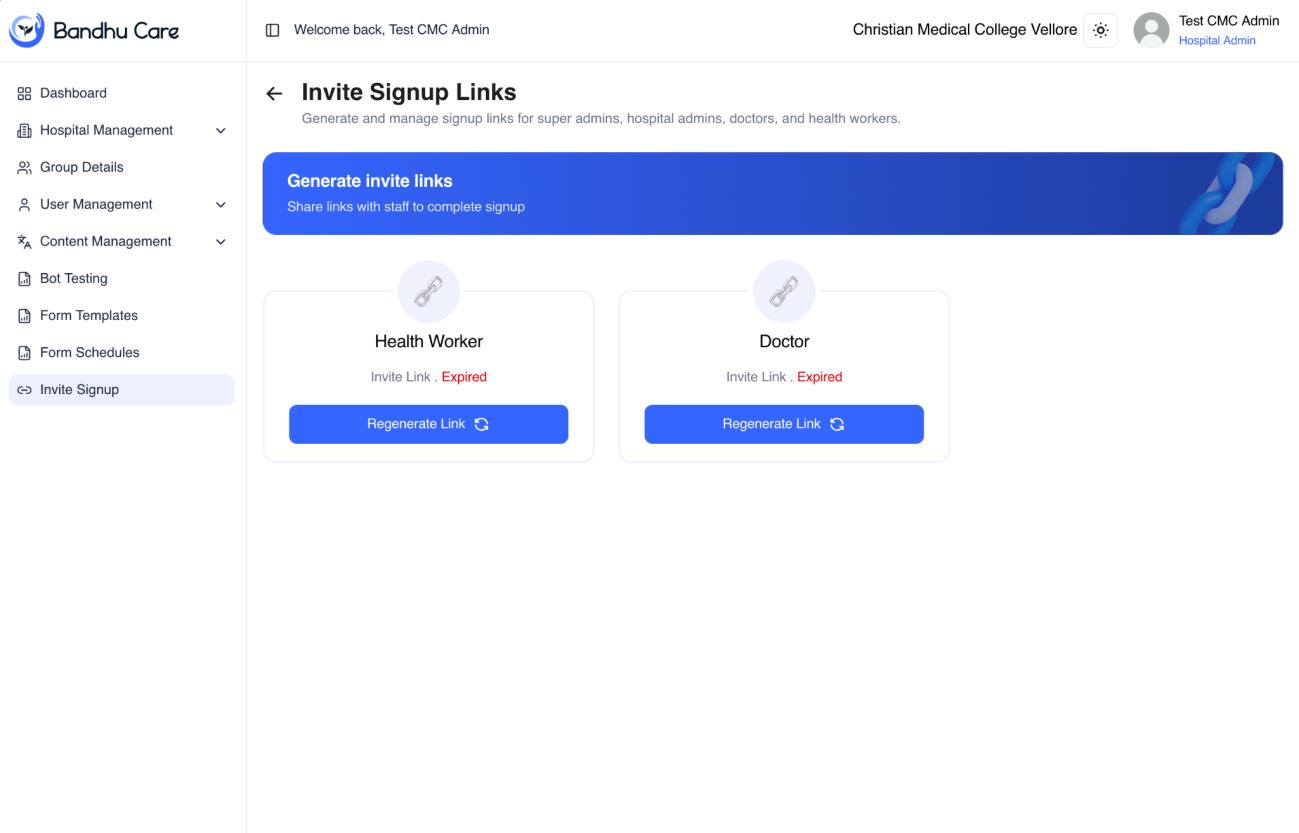
9. Invite Link for Health Worker and Admin
The Invite Signup Links screen provides options to generate or regenerate invitation links for relevant users.